

Your website’s functionality has a lot to do with the platform you use to set it up.
There are several platforms out there to choose from - Wordpress, Blogger, Wix - but the platform I use for Elle & Company and recommend to all of my clients and customers is hands-down, without-a-doubt, Squarespace.
For a many reasons:
1 | First, Squarespace is easy on the eyes
As a designer, it only seems fitting to start this list by highlighting the clean, streamlined appearance of each Squarespace site and template.
The folks at Squarespace do a fantastic job of designing each template to look beautiful while still maintaining versatility and customization.
If you’re a business owner who’s just starting out and may not have the funds to invest in a custom designed website, Squarespace’s gorgeous template designs will give you the appearance of a professional from the start.
And for those of you who have been in business for years and are looking for a way to streamline all the bits and pieces of your existing website, the clean design of a Squarespace site can help you create that cohesive, effortless look you’ve been envisioning.
2 | Squarespace is user-friendly
This one is huge, especially for the not-so-technically inclined.
Squarespace makes things easy for its users on the backend by utilizing drag-and-drop features, easy-to-insert content blocks, and intuitive page layouts.
Blog posts are easy to publish, new pages are easy to add, photos are easy to replace, and settings are easy to edit because Squarespace has done a great job of making the layout of their user interface intuitive.
There isn’t much of a learning curve because it just makes sense.
3 | Squarespace is all-inclusive
Who has time and energy to track down a hosting site, buy a domain name, and search for a theme for their website among thousands of random sites and options?
Not to mention the frustration and hassle of keeping up with renewing subscriptions and making payments to several different sites and companies.
With Squarespace, a custom domain name, hosting service, and even a custom email address are included in your monthly subscription.
4 | Squarespace is compatible across all platforms
In an age where everything is becoming more mobile, it’s crucial that businesses have a website that appears correctly on desktops, smartphones, and tablets.
Thankfully, Squarespace has you covered. All of their templates are compatible across platforms.
So the next time someone pulls up your site from their iPhone, your website will remain intact and looking just as great as the web version.
5 | Squarespace is affordable
With plans ranging from $12 to $18 per month for websites and $26 to $40 per month for online stores, Squarespace has very affordable websites.
You can also easily change between plans if you want to utilize more features or add an e-commerce option down the road.
6 | Squarespace allows you to easily make changes
You don’t have to have any understanding or background in code or HTML to design your site in Squarespace (hallelujah!).
If you want to change the header or body text styles or switch up the color of your page links, you can simply login to the backend of your website and make changes in Squarespace’s visual style editor.
Unlike other website platforms, Squarespace allows you to see the changes as you’re making them.
And for those of you who do enjoy coding and have prior coding knowledge, you can easily update the HTML and CSS in Squarespace, too. This platform works with your skillset and meets you where you are.
7 | Squarespace takes care of the things you shouldn’t have to worry about
With Squarespace, you don’t have to worry about plugins and keeping your site up to date. They do all the legwork for you and stay on top of all those details.
This is especially helpful for those of you who are a one man show and don’t have the funds to work with a website developer or designer.
8 | And last but not least, Squarespace gives you a free trial run
Choosing a website is a big decision.
Thankfully Squarespace offers a free 14-day trial so you can test out their features before making a commitment. They don’t even try to trap you by requiring credit card information.
To get started, simply visit their website and try it out for yourself!
Check out these helpful posts

With all the Squarespace blog posts I’ve written in the past, I can’t believe I’ve never written a blog post rounding up all the Squarespace resources out there.
When I first had the idea to write this post to finish out my Squarespace series I imagined this list would be bursting at the seams with resources.
But when I started doing my research for this post I found it difficult to find quality and consistently updated Squarespace resources.
Here are the 8 resources I found!

You did it!
Your Squarespace site is finally live and up for the world to see.
If you’re anything like me, you’re probably feeling a huge sense of relief, but also a bit of panic over what you may have left undone before launching. So here’s 10 things to do and check after your Squarespace site is live.

In addition to being a beautiful website builder and an easy-to-use blogging platform, your Squarespace website can also serve as an online shop. The Squarespace commerce plans (Business, Commerce Basic, and Commerce Advanced) offer a set of features for selling products and managing orders online.
If you’ve spent any real time on my blog, you’ll know I’m a huge advocate of blogging (and I have 30+ blog posts about blogging to prove it).
People are always shocked to learn the reason Elle & Company grew exponentially in my first year of business was because of my blogging efforts.
As I tried to attract new design clients, I committed to sharing high-quality content on this blog every weekday for the first year and a half of my business. I learned a lot during that year and a half, including how important your blogging platform is to your overall blogging efforts.
I made the switch to Squarespace from WordPress and Blogger because I needed a backend that was user-friendly. I’ve never looked back or regretted my decision, and I highly suggest Squarespace to each of my clients.
Many of my blog posts about blogging revolve around blogging on the Squarespace platform, so it’s no surprise that I often get asked questions about blogging on Squarespace specifically. Today I’m going to walk through how to blog like a pro on Squarespace and some of the questions I get asked about blogging on this platform most often.

Squarespace SEO (Search Engine Optimization) seems to be one of the most polarizing Squarespace topics out there.
Most can agree Squarespace is an easy-to-use content management system with beautiful templates. But for some reason, Squarespace can’t shake the perception that it has poor SEO capabilities, despite the fact that the platform has been around for well over a decade and builds known SEO practices into every Squarespace site.
But let’s get one thing straight before we get into this post, if you want ultimate control over the optimization of your site, Squarespace may not be for you.
But, as a creative small business owner, I doubt you’re chomping at the bit to dig into intense SEO practices. I’m sure you’d rather have something that gets the job done well without having to dedicate much time to it. If that sounds more like it, then Squarespace’s SEO capabilities are all you need.

Now that you’ve started your Squarespace trial and set up your Squarespace website, it’s time to start customizing the site to your needs.
But before you dive into the design, you’ll need to build a foundation for your new site by setting up your navigation menu, adding pages, and filling out those pages using blocks.
This post will walk you through how simple it is to build a foundation for your website using Squarespace.

I love Squarespace for many reasons. It’s easy on the eyes, user friendly, affordable, compatible across all devices, and easy to edit. One of the other features Squarespace offers is a free 14 day trial.
Squarespace’s free 14 day trial allows you to try out the platform and get to know the features before subscribing. And they don't even require a credit card to start your trial!
But you may be wondering what features you should check out and what you should investigate before you take the plunge. So here’s 5 things to investigate during your 14 day Squarespace trial.

I wrote my first Squarespace blog post series back in 2015.
I covered everything from how to set up pages and navigation to how to use Squarespace blocks, Squarespace SEO and metrics, setting up a blog and shop, and customizing your Squarespace website.
And even though these posts are 3 years old, they continue to be some of the most popular on my site. You may have even stumbled across Elle & Company for the first time through one of them!
But Squarespace has continued to change and grow since then, so it’s time for an update.
Over the next several weeks I’ll be walking you through a brand new Squarespace series. I’ll expand on the how-to posts, include new updates, and share about topics I haven’t yet covered.
If you’re currently using Squarespace for your website or plan to get your Squarespace site up and running in the coming months, you won’t want to miss these posts!

Beautiful templates are one of the many benefits of using Squarespace for your website.
I like to joke around with clients and peers that it’s hard to create an ugly site with Squarespace for that very reason.
But with so many great templates to choose from, it can be overwhelming to determine which one will work best for your website. Or you may even find it difficult to choose just one.
Over the past 3 ½ years, I’ve spent countless hours researching and testing out different Squarespace templates for my design clients, and I’ve discovered some favorites along the way.
I’ve rounded up 8 of my go-to Squarespace templates to help you in your search and hopefully make this stage of the website-building process a little less stressful.

Your website is your business’s online home base.
It’s where all the magic happens; it’s where sales are made, services are booked, and trust is built through blog posts and portfolio views.
So it’s really important that your website makes a positive first impression through design and functionality.
There are a lot of opinions out there about what your website should look like and how it should function.
But what are the facts?

So you’re convinced that Squarespace is the platform for you.
It’s simple user interface, beautiful templates, and all-in-one platform won you over, and you’re ready to make the switch.
But where do you start? How do you move all your of your current content over, transfer your domain, and easily make the switch to Squarespace?
Here are 6 simple steps for making the transition as easy as possible.
Squarespace is a great website option for business owners who want a lovely, professional website that’s mobile friendly and easy to update.
I chose Squarespace for the Elle & Company website and I highly recommend it to all of my design clients because of the beautiful templates, intuitive user experience, and compatibility.
But with all of those great benefits come limitations on customization.
Unlike Wordpress where the possibilities are endless, Squarespace isn’t as flexible; you have to work within the parameters of their templates and features.
This might be a problem for you if you’re seeking a website that has all of the bells and whistles, but it isn’t an issue for those of you who are seeking to create a simple, intuitive site.
With these 6 tips (and a little creativity), you can customize your Squarespace site to fit your brand and make it memorable.
At the end of each design project, I meet with my clients over Skype for a 1-hour Squarespace tutorial.
I share my screen and walk them through the ins and outs of using and updating their new website, and I record the session so my clients can refer back to it later.
Somehow I always find myself sharing quick Squarespace tips and shortcuts throughout the session, so I thought it was about time I round them up and share them with you, too!
Here are 11 shortcuts and tricks I’ve discovered over the past few years of using Squarespace.
It was so frustrating.
I just wanted to create a site for my upcoming course that (a) was easy to use, (b) looked like my brand, and (c) allowed students to login under their own account.
I tried sites like Teachable and Teachery. But they took people off of my site and I found myself coming up with creative workarounds to customize the look and function of my course on their sites.
Surely there had to be a better way.
And then I had an idea.

I made the decision to switch email marketing platforms from MailChimp to ConvertKit a little over 2 months ago, and I haven’t looked back.
I’m a fan of ConvertKit because it allows me to organize my list per subscriber with tags and segments, which has allowed me to understand my audience better. I also love how easy it is to set up automated emails and content upgrades using their platform. (I’ll have to do an in-depth post on all of my reasons for switching soon!)
But there’s one MailChimp feature that I do miss: Their easy integration with Squarespace.
Before I made the switch, I was able to set up a form on my Squarespace site, link it to one MailChimp lists, and I was good to go.
Unfortunately, this isn’t an option with ConvertKit… yet.
However, before any Squarespace users get bummed out about this, I have good news!
There are a couple simple solutions for syncing Squarespace and ConvertKit.
And if I can implement them without any trouble, I’m certain you can, too.
If you’re looking for a user-friendly, professional website builder for your website, look no further than Squarespace.
This all-in-one platform is intuitive, all-inclusive, and includes several beautiful, compatible templates. You can see all of my favorite Squarespace features in this post.
But while Squarespace sites are easy to set up and use on the backend, it takes a little creativity to customize the templates and make them your own.
Thankfully, there’s a feature built into each Squarespace site that allows you to make simple design changes: the Style Editor.
When it comes to building a website, there’s no denying the simplicity and user-friendliness of Squarespace.
For those of us who want a well-designed site without the hassle and learning-curve of using code and plugins, Squarespace is the perfect option.
But because it’s so easy and each template is gorgeous, it can be hard to determine which template would be the best fit for your website. Out of all the questions I receive about Squarespace on a regular basis, the majority of them revolve around choosing a template.
And that’s where this post comes in. I’m walking you through choosing the perfect Squarespace template for your creative business, step-by step.
It’s no secret that I love Squarespace. Not only is it easy to customize, easy to use, and easy on the eyes, but it makes the client process so simple for designers who use it to create client sites.
Because Squarespace is still relatively new and there aren’t as many designers using it as there are on Wordpress, I receive several emails each week regarding about the ins and outs of how I design client sites using the platform.
I get asked everything from how I handle billing to how I choose a template, so today I’m sharing an inside look at my Squarespace client design process from start to finish.
For those of you who are already designing sites in Squarespace, I hope you’re able to take something away that makes things simpler and more efficient on your end. And for those of you who are considering trying your hand at offering Squarespace site design in the future, I hope this post convinces you to take the leap and try it out.
It’s no secret that I’m a big fan of Squarespace. It’s a fantastic option for business owners and bloggers who need a simple, beautiful platform for building a website. It’s mobile-friendly and user-friendly. There isn’t a huge learning curve for figuring out the back-end. And if you’d like to hear me go on more about all its benefits, you can read this post.
But because Squarespace templates are beautiful, simple, and easy to setup, many users have a hard time customizing their site and making it look one-of-a-kind.
That’s where today’s post comes in. I’ve compiled some of the most helpful tools I’ve discovered for switching up the look of a Squarespace site. Some of these might be new to you and some might already be built into your template, but I hope you’re able to walk away with a few new ideas for making your Squarespace site your own.
Have you ever wondered how to get related posts to show up below each of your blog articles on Squarespace? Maybe you’re looking for a fast way to add featured posts to your sidebar or you’d like to create an easy archive page for your site.
The answer to all of the above lies in my favorite Squarespace tool: the summary block. Today I’m taking you behind the screen to show you how to use the tool and get creative with it to meet many of your website building needs.
For those of you who are new around here, there’s something you should know about me: I’m a huge fan of Squarespace. I switched over to the platform a couple years ago after using both Blogger and Wordpress, and I’ve never looked back. I started the Elle & Company site on the Squarespace platform and I’ve been so pleased by the simple interface and gorgeous template designs that I highly recommend it to every design client and blog reader. I also wrote a blog series on it a couple months ago that included 2 free webinars, all of which are recorded and shared here.
Somehow, in all of the many features I shared with you within that series, I left out one of Squarespace’s most functional capabilities: e-commerce. Today I’m giving you a look at how easy it is to set up shop using Squarespace.
Archive pages are a great way to categorize and round up your past blog posts. They make it easier for new visitors to take a look through your previous content, and they allow regular readers to quickly find and refer back to posts that they've read in the past. The more that stay on your site and look through your previous posts, the more likely that they will get to know you, like you, and follow along with you.
On Tuesday I blogged about 9 Ways to Make the Most Out of Old Blog Content, and I put an emphasis on the importance of a well-designed blog archive. Since then, I've been surprised by the number of readers who have asked me how to set up an archive page in Squarespace. Today I thought it would be beneficial to walk you through 3 different ways to showcase your archives using Squarespace blocks.
Blogging with Squarespace is simple and intuitive. From adding a blog page to creating and publishing a post, the blogging process in this platform is very straightforward (especially for those of you who don't have any previous experience with coding).
Blogging platforms are always a topic of great debate and can be a touchy subject for some, so I think it's important to preface this post by stating that different platforms work better for different people depending on their needs. I made the switch to Squarespace from Wordpress and Blogger because I needed a backend that was user-friendly, a template that was easy to customize, and great customer support. I've never looked back or regretted my decision, and I highly suggest Squarespace to each of my clients. But because Squarespace is comparatively new to the scene, people aren't as familiar with its blogging capabilities.
One of the things I enjoy most about Squarespace is that it's all inclusive. My domain name, site hosting, e-commerce shop, blog, custom email address, newsletter sign-up - all are in one place without any plugins or coding, and Squarespace manages it all for me. Metrics are also included, and I've been very impressed with the simple layout and variety of information that Squarespace provides for displaying my visitor activity. Today I'm taking you into the backend of my website to give you a look inside the metrics that are available within each Squarespace site. By exploring the metrics, you can learn how visitors discover your site and what they do once they're there.

Out of all of the comments and emails I receive about Squarespace, SEO is by far the topic that is most frequently asked about. So today Jake is taking over this Friday series to cover search engine optimization on the Squarespace platform and clear up some misconceptions.
There seems to be a lot of misinformation out there about Squarespace and its SEO capabilities. Most agree that it has an easy-to-use content management system and the templates look clean and professional, but for some reason Squarespace can't shake the idea that many people have about its poor SEO capabilities. In fact, several people have contacted Elle & Company telling us that they would make the switch to Squarespace if they hadn't heard that another blogging platform is better for SEO. But is this really accurate?
As with any website builder/platform, there's a little bit of an experimental phase as you're getting started. These past couple weeks, my goal has been to walk you through Squarespace and make that experimental phase shorter and easier for you as you set up and customize your own site. I started the series with an overview of why I choose and recommend the platform, I shared how to get started by choosing a plan and template, and last week I covered setting up pages and navigation.
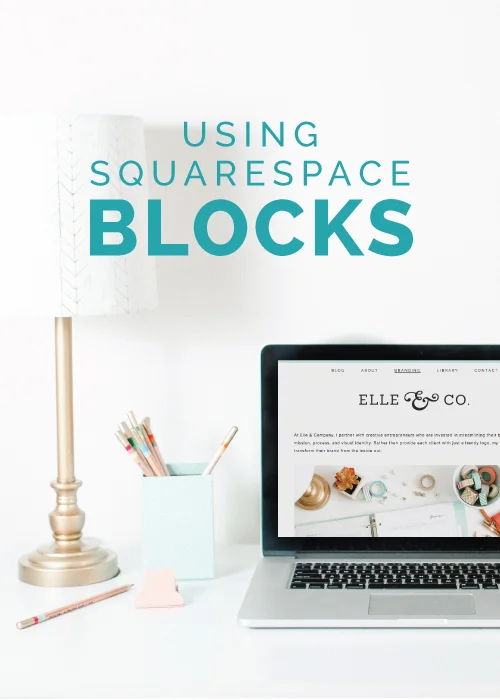
Today I'm reviewing Squarespace Blocks, which allow you to add content to pages and blog posts. I've gathered the information and help links from the Squarespace site and I've compiled them all onto one page for your convenience. My hope is that this post acts as a helpful resource for those of you who are new to this platform. And for those of you who have been using Squarespace already, you might come across some new blocks that you weren't aware of before.

Now that you've chosen a Squarespace plan and template, it's time to start customizing the site to your needs. But before you jump into any customizations on your new site's design, it's important to build a foundation through adding pages and setting up your navigation. Today I'm walking you through those steps and giving you a glimpse at just how simple it is to build a foundation for your website using Squarespace.

So you're interested in starting a Squarespace site. You're either considering switching over your current blog and website from a platform like Wordpress or Blogger, or you're new to the scene altogether and you're starting from scratch. You probably have a lot of questions like: Where do I begin? Which package is best suited for me? Can I transfer all of my old blog content over? Can I keep my current domain? Today I'm sharing some pointers on getting started with Squarespace as well as insight on which plan would be the best fit for you.

Just like photographers have a preference in cameras and golfers have a preference in clubs, business owners and bloggers have a preference in website platforms. And for me, that preference is Squarespace. I'm such a fan of this platform that I not only use it myself, but I highly recommend it to each and every design client I work with. So what's so great about Squarespace and why should you get on board with this platform? Here are 8 reasons.
You’re ready to create a striking online home base
Creating and designing your online home base is a huge milestone for every business.
I’m so glad you’ve taken the time to set up your website with intention and I’m honored that you allowed me to help you along the way!
Not only are you creating a great first impression for potential clients and customers, but you’re guiding them to the products and services that will help them along the way.
I’m excited to see what you come up with!

Squarespace officially rolled out their new email campaign feature on Wednesday.
Up until then, users have had to use a third-party platform (like Mailchimp or ConvertKit) and sync it up to their website either by a form block or a piece of code.
But not anymore!
Squarespace now offers beautifully designed email campaigns that are easy to create, edit, and automate. It’s just one more way that the website builder is helping people create a beautiful online presence.
This new feature will be beneficial for a lot of Squarespace users. But is it right for you?
Before you ditch your current email marketing platform, consider these pros and cons.